Cloud DMA for Valheim: Requirements and Setup

Cloud DMA is the technical layer used for full functionality on supported builds of the Valheim feature set. Its setup is designed around one Windows PC, where an installer provisions a Hyper-V-based virtual environment and completes activation through an encrypted service link.

That single-PC design is an important part of understanding the configuration. The setup does not call for a second physical tower, an external DMA box, or a PCIe bridge. This guide covers the Windows features, hardware capabilities, and additional components listed for Cloud DMA.
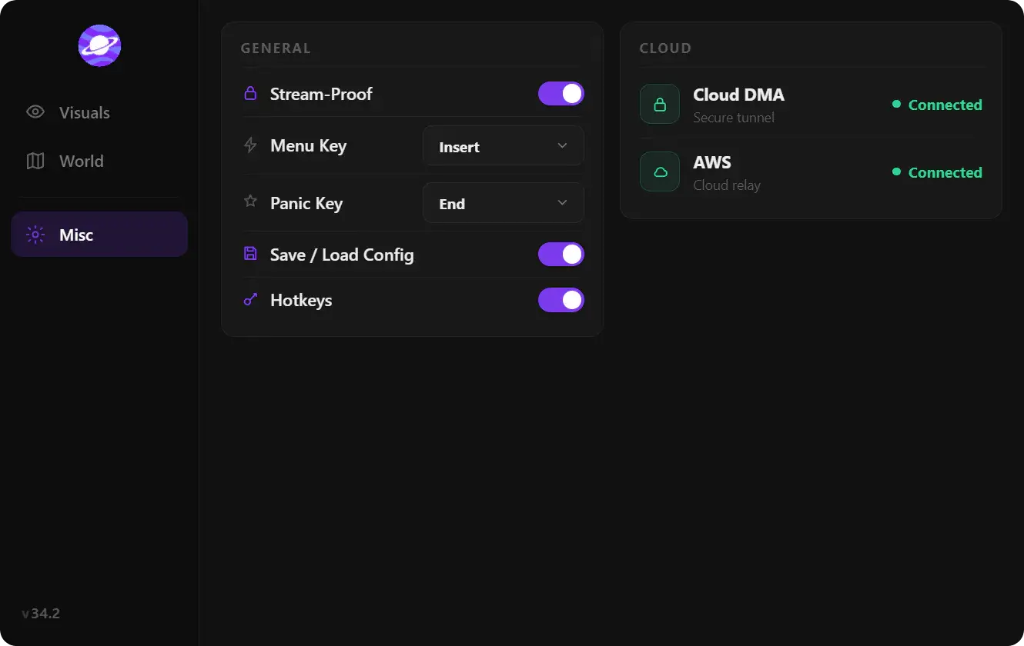
Product interface

Screenshots of the Valheim client menu from the supported build. Exact labels and layout may change with updates.

Valheim cheat client Misc tab with stream-proof toggle and Cloud DMA and AWS shown as connected
In-client Cloud DMA and AWS status (Misc tab)

How Cloud DMA Fits the Valheim Setup

The Valheim product lists Cloud DMA as required for full functionality on supported builds. Cloud DMA provides the underlying environment used by the supported feature stack, with the installer setting up a Hyper-V-based virtual environment on the same PC used for gaming.

The workflow is built around a single machine rather than a separate hardware tower. The installer provisions the virtual environment and completes activation over an encrypted service link. This makes the Windows configuration and firmware virtualization settings central parts of preparation.

The Single-PC Hyper-V Architecture

Cloud DMA uses Hyper-V on the Windows PC. CPU virtualization must be enabled in the system firmware, using Intel VT-x or AMD-V depending on the processor. The Windows installation also needs to support enabling the Hyper-V role during the guided setup; Windows Pro, Enterprise, or Education editions are recommended in the setup notes.

The listed memory requirement is 8 GB RAM minimum, with 16 GB recommended. A stable broadband connection is also required for activation and ongoing service connectivity. These details are worth checking before starting the installation so the system is ready for the guided configuration.

Windows Security and Virtualization Requirements

The Cloud DMA requirements list Windows 10 or Windows 11 in 64-bit form, along with several Windows security settings. HVCI, Core Isolation, TPM, and Secure Boot are all listed as enabled requirements. CPU virtualization must also be available and enabled in firmware for Hyper-V.

Use this checklist to review the main configuration points before setup:

  • Operating system — Windows 10 or Windows 11, 64-bit.
  • Windows security — HVCI, Core Isolation, TPM, and Secure Boot enabled.
  • Processor virtualization — Intel VT-x or AMD-V enabled in firmware.
  • Hyper-V — Ability to enable the Hyper-V role; Windows Pro, Enterprise, or Education recommended.
  • Memory — 8 GB RAM minimum; 16 GB recommended.
  • Connection — Stable broadband internet for activation and ongoing service connectivity.

Additional Components in the Cloud DMA Configuration

The Cloud DMA setup lists GREENWARD, Static Server, and AWS as required components. They are separate items in the configuration, and Static Server and AWS serve as two distinct components. Keep all three on the setup checklist when planning the complete configuration.

The current Cloud DMA listing shows a $50 lifetime option for the Cloud DMA layer itself. The additional components have their own separate pricing, so use the live checkout details for the current total rather than treating the Cloud DMA listing as the price of every required item combined.

A Practical Setup Checklist

Start by confirming the Windows edition and checking that the system has the required security settings enabled. Next, confirm that CPU virtualization is available in firmware and that the Hyper-V role can be enabled on the Windows installation. Check memory and internet connectivity, then review the current installation walkthrough before running the guided setup.

Once the Windows environment is ready, keep the required components together and follow the setup instructions in order. The Valheim ESP page explains the in-game feature categories, while the pricing page lays out the access options and the Cloud DMA component cost.

Related pages

Frequently asked questions

Does Cloud DMA for Valheim require a second PC?
No. The listed configuration is designed for one Windows PC using a Hyper-V-based virtual environment on that same machine. It does not require a second physical tower or an external DMA box.
Which Windows versions are listed for Cloud DMA?
The Cloud DMA requirements list Windows 10 and Windows 11, 64-bit. The setup notes recommend Windows Pro, Enterprise, or Education for enabling the Hyper-V role.
How much RAM is recommended?
The listed minimum is 8 GB RAM, with 16 GB recommended.
Which additional components are required?
The configuration lists GREENWARD, Static Server, and AWS as required separate components. Static Server and AWS are distinct items.

Image alt text patterns

Use these as guidance when adding screenshots or feature images to this page.

  • Windows Hyper-V setup for Cloud DMA on a single PC
  • Windows 11 virtualization settings used for Cloud DMA setup
  • Cloud DMA system requirements checklist for Valheim
  • Single-PC Cloud DMA architecture diagram